We Examine. You Judge.
TBE Bar Owner Guide
Keep your bar’s TBE information useful, current, and shareable.
Welcome to The Bar Examiner
Owner access gives you a claimed-listing page, a fast specials editor, social sharing, photo and menu uploads, and printable signs.
Your Owner Tools
Open My Account and scroll to Owner Tools. The tools currently available are Claimed Listings, Paid Plans, Owners Guide, Edit / Share Specials, and Printables.
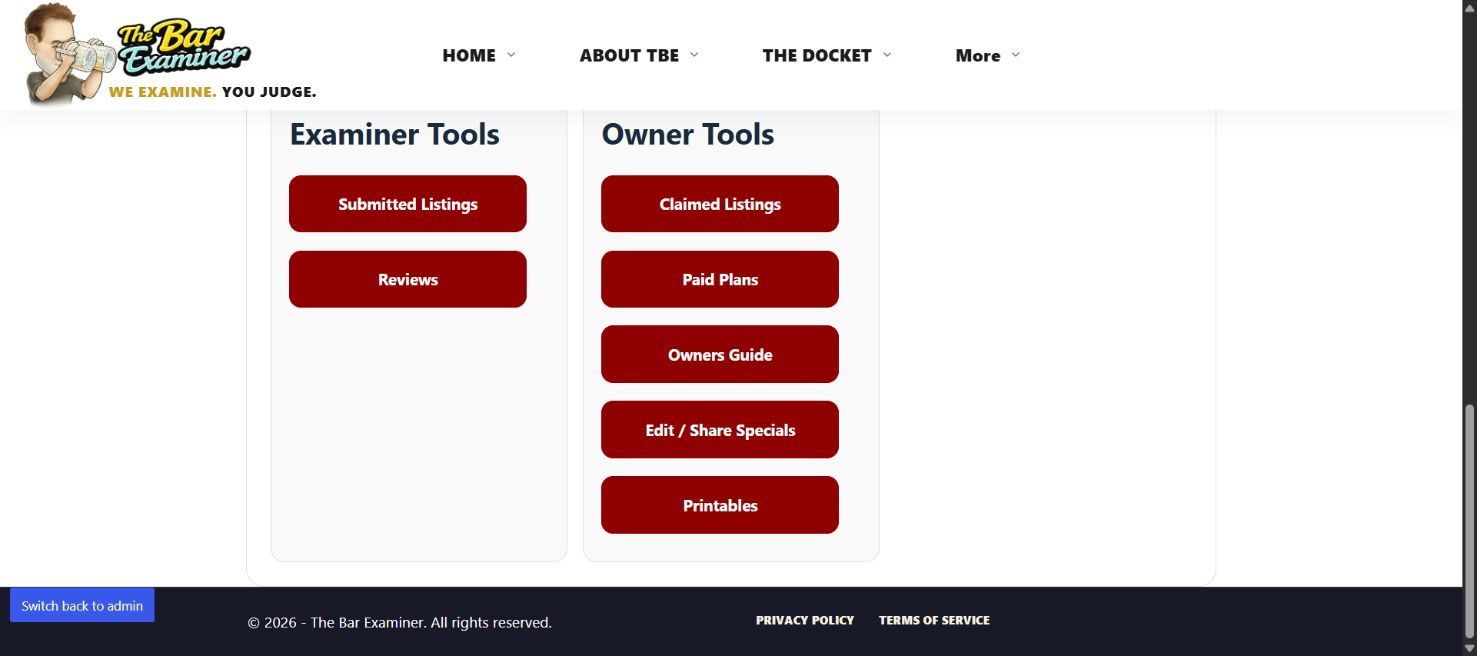
The Owner Tools area on My Account.
Manage Your Listing
- From Owner Tools, choose Claimed Listings.
- Select your bar’s name or picture to open the public listing.
- Review the information customers can see. Use the small gear below the listing header for owner actions.
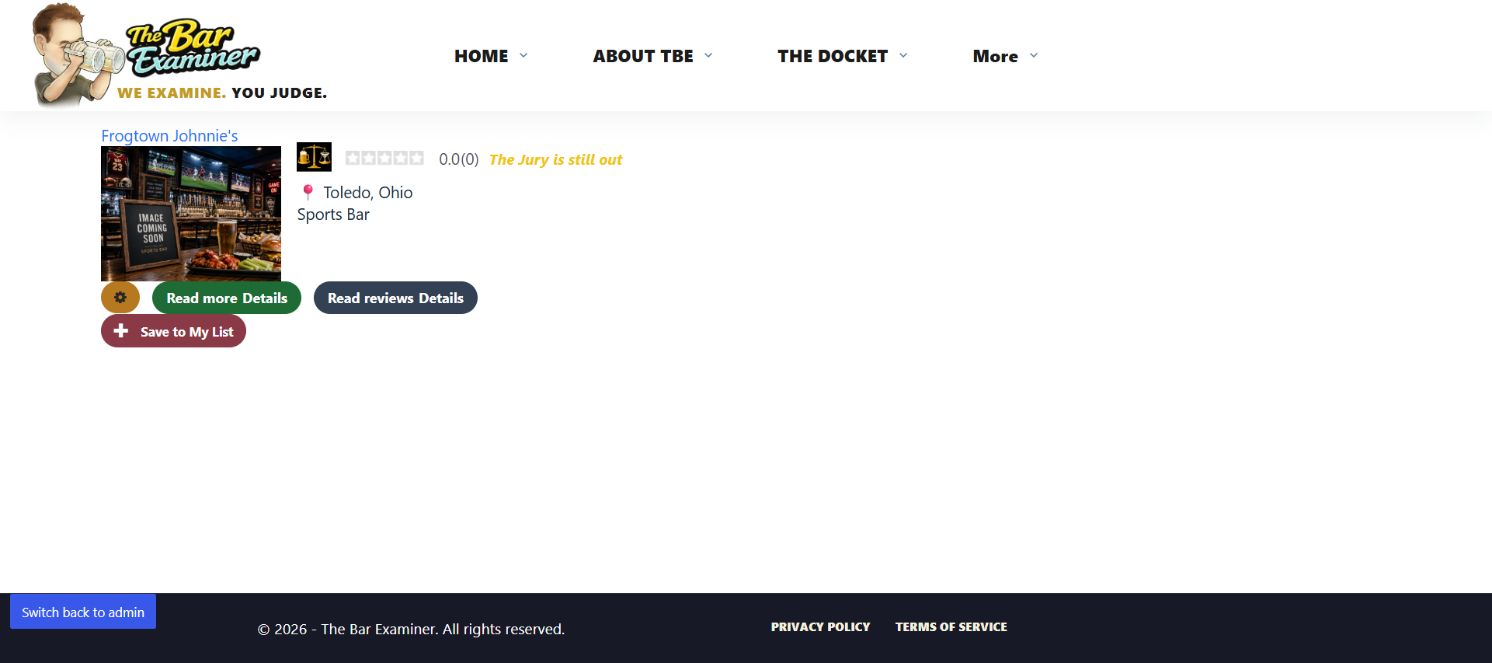
The claimed-listing page shows the bar as a public listing card.

Tap the gear, then choose Edit Listing, Add Media, or Edit Media.
Update Your Specials
- From Owner Tools, choose Edit / Share Specials. If you manage one bar, TBE opens that bar’s editor automatically.
- Enter the current text under Happy Hour, Drink Specials, Food Specials, General Specials, or Events.
- Choose Save beside the section you changed.
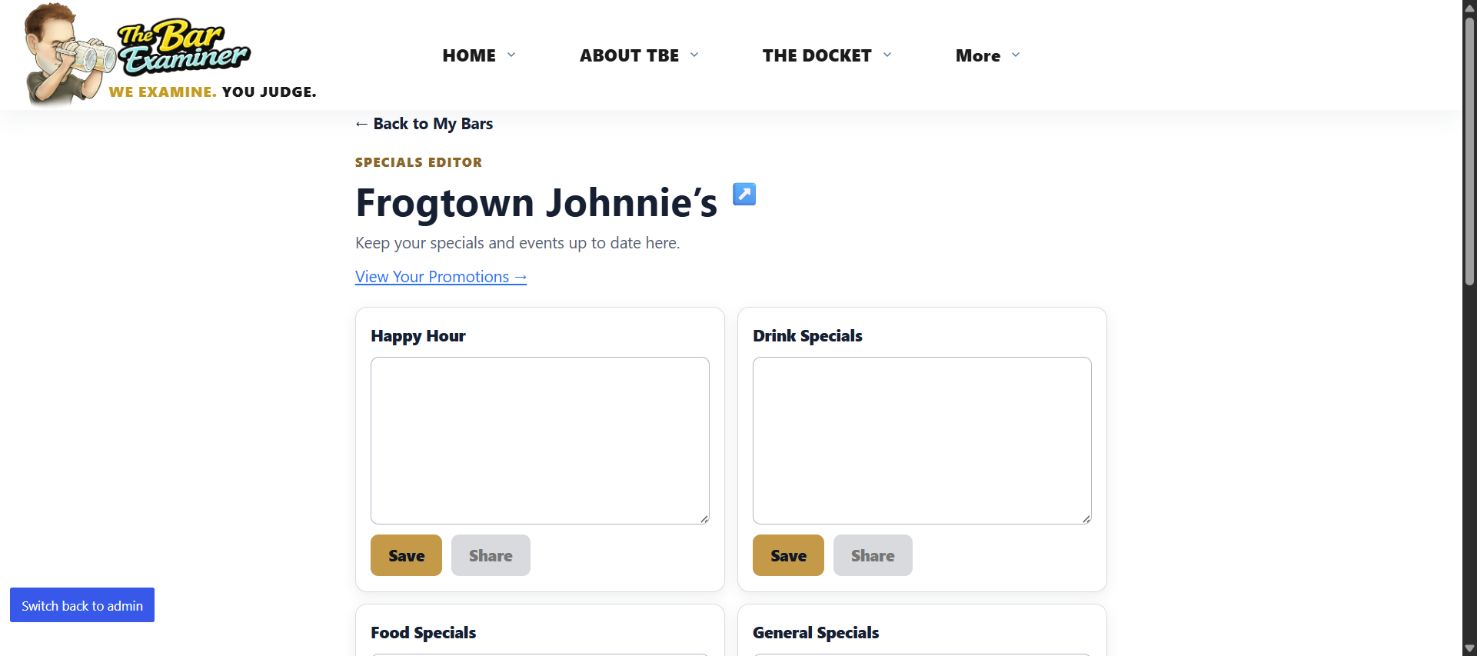
Each specials section has its own Save button.
Tip: Share stays unavailable until that section contains a configured special. Owner Specials Notes are private and limited to 50 characters.
Edit Your Bar Information
- Open your claimed bar’s public listing.
- Choose the small gear below the listing header.
- Choose Edit Listing, make the needed changes, and choose Submit.
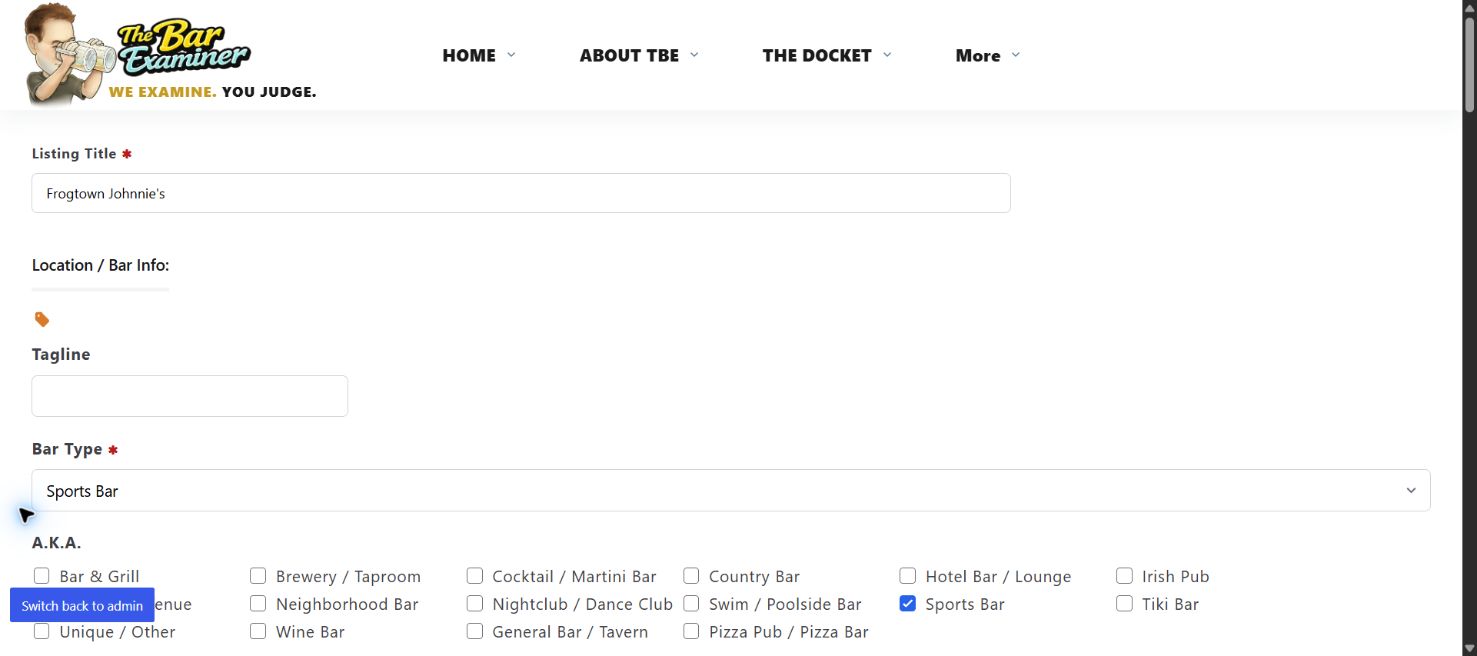
Edit Listing opens the owner editing form. Cancel if you do not want to save changes.
Manage Photos and Media
- Open your public bar listing.
- Choose Add Media near the top of the listing—or open the gear and choose Add Media.
- Accept the Terms & Conditions, then choose or drag in your files.
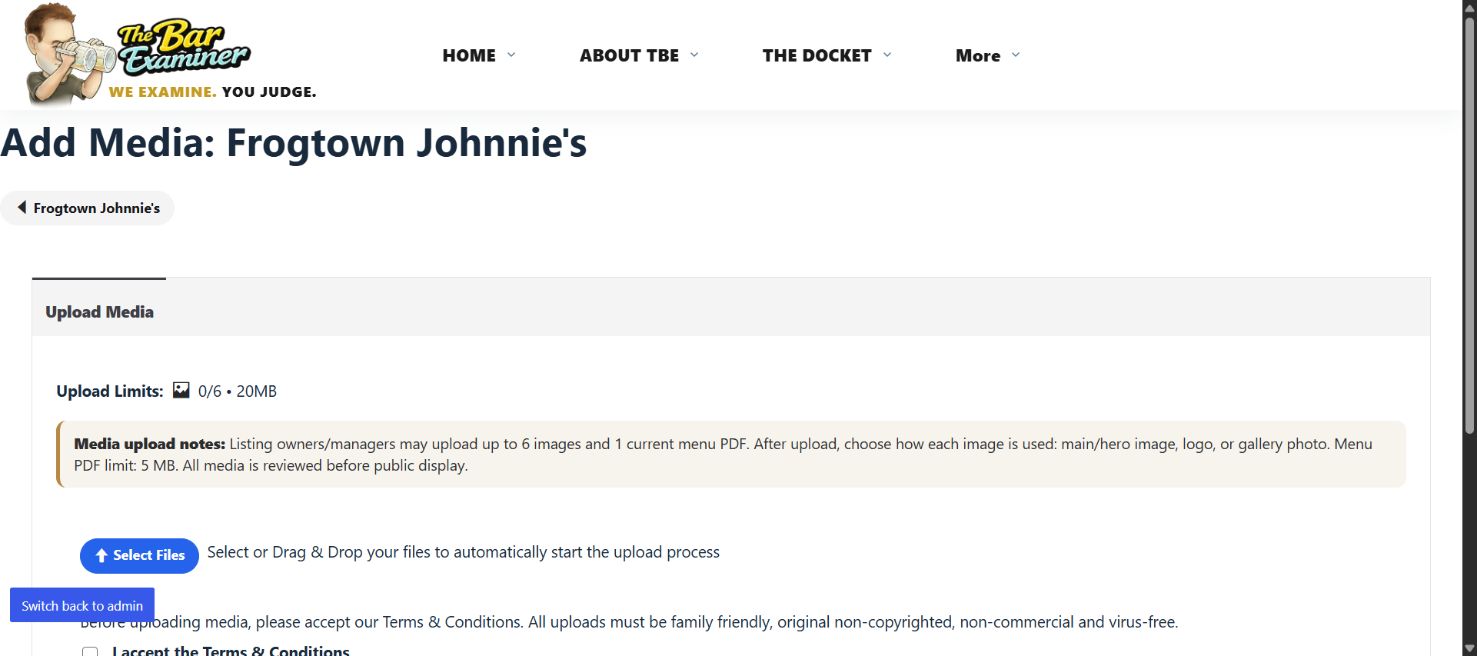
The upload page states the active limits and review policy.
Current limits: up to 6 images and 1 current menu PDF. The page shows a 20 MB image allowance and a 5 MB menu-PDF limit. After upload, images can be assigned as the main/hero image, logo, or gallery photo. TBE reviews media before public display.
To work with media already attached to the listing, open the gear and choose Edit Media. If the bar has no existing media, the page may appear empty except for an Add Media button.
Share Your Specials
- In the Specials Editor, choose View Your Promotions.
- For a simple Facebook reminder, choose Share Reminder. Facebook uses the account already signed in on that device.
- To share a specific special, first save that special, then use its Share button in the editor.
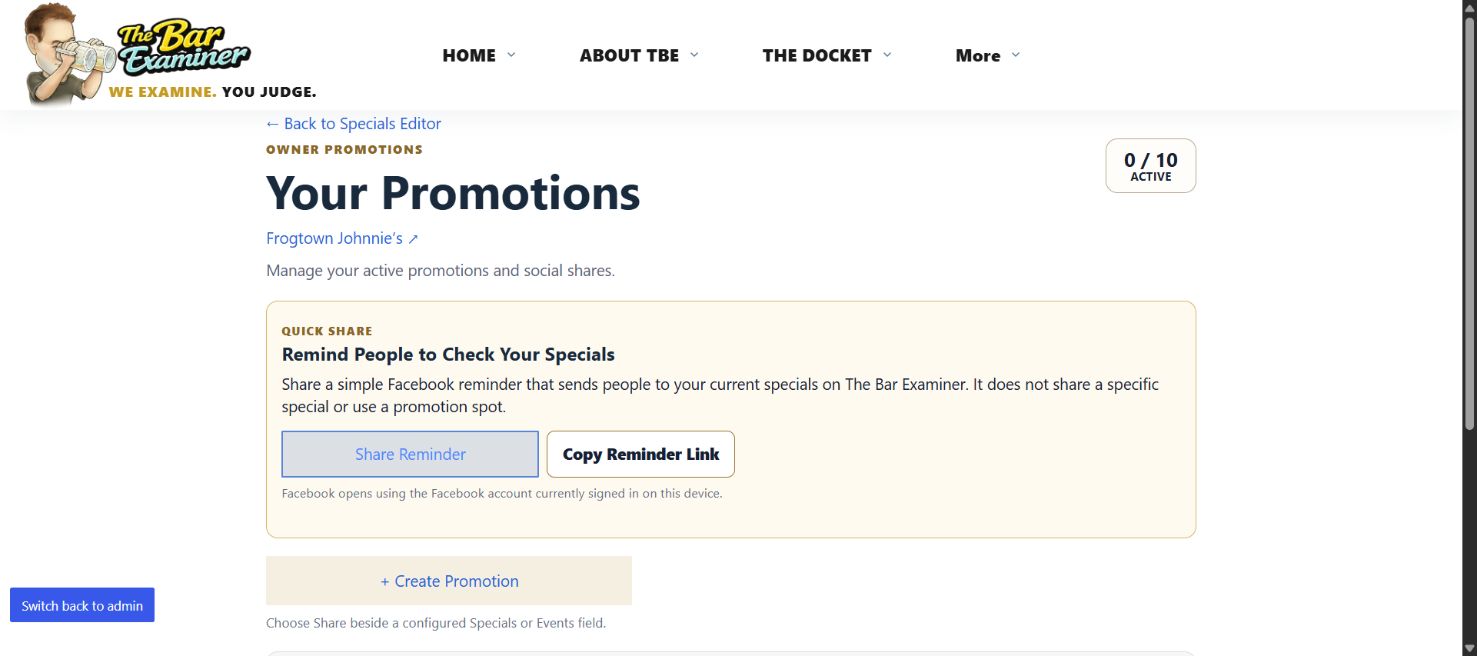
Quick Share sends people to the bar’s current TBE specials page and does not use a promotion spot.
The Promotions page currently displays an allowance of 10 active promotions.
Make a Printable Sign
- From Owner Tools, choose Printables.
- Select your bar, message, and sign size.
- Choose Preview sign.
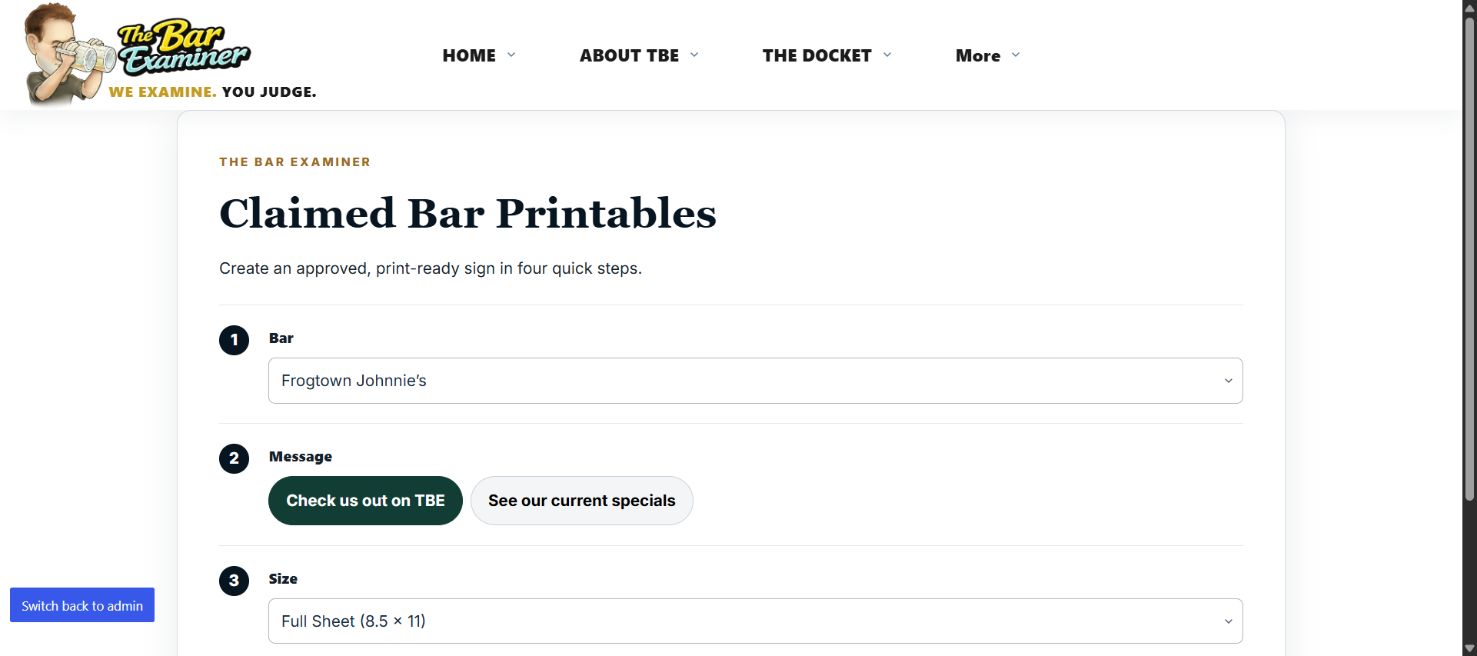
Available sizes shown today: full sheet, 5 × 7, and a 4-up small square.
Need Help?
If you cannot update something, believe your listing is incorrect, or do not see your claimed bar, contact TBE support and include your bar name plus the information that needs attention. On the listing itself, Report an Issue and Suggest/Update Info are also visible routes for reporting corrections.